 It’s time to break down and find out what all the tweets, I mean fuss, is about. Twitter is a social networking tool, providing conversation in small, succinct bites. Think of twitter as a trail of breadcrumbs, leading you to a pot of gold. Seriously! If you start following your heroes, your colleagues and some smart folks, they will feed you links to interesting resources, news sources and more. By crowdsourcing and sharing, we all become smarter. And twitter isn’t just a tool for grabbing good resources and information from the web. You can have meaningful tweet chats with your colleagues, use the tool to promote yourself and your ideas, communicate with a class around the globe, or show your gratitude and appreciation for your peers or colleagues.
Video on Twitter–Get the Skinny
Watch this short video from the folks at Common Craft: Twitter in Plain English (2.25)
Sign Up for a Twitter Account
I suggest that you think carefully about your twitter identity. This is part of your online digital footprint and how people will come to know you in the future. Bloggers often post their twitter handle on their blog and you might end up using this for many professional interactions. When you sign up for your account, you can choose an “avatar” or image to represent your identity online. Some folks use avatar tools to create a comic of themselves and others use their actual photo. I use my photo because I think this personalizes the communication in an online space. I use my twitter account for professional purposes only. Think all of these things through! And finally, use an email address that you do not mind receiving messages from twitter because you can set the account to notify you when you receive a tweet. You can adjust privacy settings and notifications within your “account settings.” Sign up! What are you waiting for?
So what is a tweet?
It’s 140 characters of text. You can also post links within your tweet. You can send out your tweets to the world and you can label your tweets with categories–these are called hashtags. A hashtag is created by a group or an individual–it is entirely made up by the user. You do not have to sign up for a hashtag. For instance, if I want to discuss Cupcake Wars in a tweet, and I want others who are interested in Cupcake Wars to join me, I would put the hastag #cupcakewars at the end of my tweet. That way, anyone following that topic will be able to join in the conversation.  (Don’t ask–cooking shows are on demand at my house!)
Speaking of follows, some folks will choose to follow you and others will not. Don’t get offended if someone you follow does not choose to follow you as well. I follow the author Judy Blume, for instance, but I am certain she is not following me. (And no, it’s not like stalking someone! LOL) You can search for people within twitter by their name or their twitter handle (mine is at techbabble88). You can also search for twitter feeds by hashtags and follow those conversations. If you attend a conference, chances are there is one hashtag that is announced at the start of the conference and everyone uses that in their tweets. That way, everyone at the conference can dialogue and follow the conversation.
What a tweet is not: Spam or an insult. That’s pretty easy to understand. Remember that your tweets are public, so if you want to have a private conversation, take it offline or send a private email message.
Retweeting: You can show your appreciation for an idea or tweet by retweeting someone’s tweet. This is one of the features within the twitter tool.
Friday Follows: On Friday, tweet out your appreciation to the folks that kept you smart all week long. Use the hashtag #FF for Friday Follows and send the tweet to your favorite follows of the week.
Links in a Tweet–Use Bitly: Make your links shorter and smaller using a web-based tool like Bitly. Every character counts in a tweet, so use bitly to overcome the long links. You can use Bitly by signing in with your Twitter account. OR, you can use the tool TinyURL. I like them both.
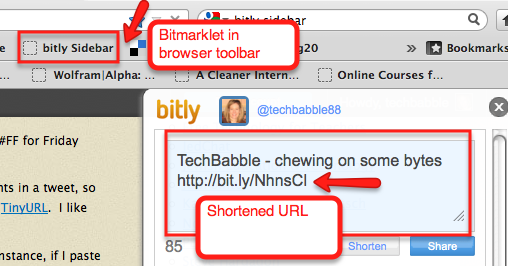
More about Bitly: When you go to the Bitly page, look for the window in the top right corner to paste in your link. For instance, if I paste in my blog address for this post, Bitly will give me a shortenend link that looks like this: http://bit.ly/PL1Dy7 . I also like the sidebar tool, the bitmarklet that you can install into your browser’s tool bar. With the “bitmarklet,” you do not have to navigate away from your page–the bitmarkelt tool shows up on the side of your screen when you click on the button in your browser toolbar, ready to paste in your URL.
And one more super cool thing about Bitly…when you use the bitmarklet in your browser, you can choose to share your shortened link with a brief message and send it out via your Twitter account (if you login to Bitly with your Twitter ID). Pretty cool, right! It takes a step out of of the process if you want to post a shortened link on Twitter–just sayin’!
Using Bitly Bitmarklet:
Pasting link into Bitly web page:


Get Your Tweets on With These Helpful Resources:
You may remember that I am a connected coach for Powerful Learning Practice. Through this experience, I stay connected to my colleagues across the globe (some even in Australia and China) through twitter. And by the way, some of the folks I admire most, I have not met F2F (face-to-face), but only follow their tweets or blogs or participate in online spaces with them. The smart folks at PLP put together a Tweet Handbook for Educators. I gave you an overview of Twitter in this post, but when you are ready to really roll up your sleeves, use this handbook! It’s unbelievable! It also lists some wonderful folks to start following, if you do not know where to begin.
Twitter-Handbook-for-Teachers
Twitter Glossary brought to you by the folks from Twitter.
Twitter Help Articles – Use this resource page to get to know all the features of Twitter.
Tweetdeck – Download tweetdeck to improve your user interface. You can create columns of hashtags, your favorite tweets and more. I prefer this interface for all my tweeting. It works really nice for live tweet chats.
Twitterfall – Twitterfall is another tweet aggregator that fetches your tweets into a nice feed. It is also a helpful tool when you participate in a tweet chat and the tweets come at you so fast–it’s hard to read and post in these situations.
Tweeting in the Jewish/Ed Tech World: Yep, there’s a whole bunch of folks I suggest you follow and there are some interesting hashtags too…
#jedchat – Follow this group of Jewish educators on Wednesday night at 9pm, Eastern. You can also check out their wiki and blog.
#jds
#jed21
#jewished – Follow this hashtag for conversations related to Jewish education
@jewishfutures – Jewish Futures hosts an annual conference dedicated to progressive thinking in the Jewish world.
@avichaifdn – Avi Chai Foundation
@ravsak – RAVSAK
@pejeJDS – Partnership for Excellence in Jewish Education
@lisacolton – Lisa Colton, Founder of Darim Online, non-profit dedicated to helping Jewish organizations and education institutions with harnessing social media
@covenantfn – Covenant Foundation
@EJPhil (e Jewish Philanthropy)–They offer a lot of good news and often related to Jewish day schools.
@NYJewishWeek (New York Jewish Week–news source)
Some of my favorite ed tech guru follows and just smart educators:
@snbeach – Sheryl Nussbaum Beach from Powerful Learning Practice
@lanihall – Lani Ritter Hall, educator and connected coach leader from Powerful Learning Practice
@willrich45 – Will Richardson, ed tech guru and progressive thinker/educator
@karlfisch – Karl Fisch, another ed tech guru and leader in the field
@stevehargadon – Steve Hargadon, ed tech leader and creator of Classroom 2.0
@chrislehmann – Chris Lehmann is the principal of the Science and Leadership Academy in Philadelphia, PA and the co-chair of the annual Educon conference. Another progressive thinker in the field:)
@globalearner – This is Alan November’s handle. He is the leader of the Boston Learning Conference and a warrior in the digital revolution for education. If you get a chance to go to the conference, you will find it inspiring, hands-on and just awesome.
@mwesch – Michael Wesch leads his students in the study of digital ethnography at Kansas State University. They have a fascinating YouTube project. His students created the poignant video “A Vision of Students Today“.
Follow me on Twitter @techbabble88
Who do you follow? Post your follows on this blog. Also, share your thoughts on how tweeting can support you as an educator? How can twitter be part of your classroom experience? What don’t you like about it?

 The Joshua Venture Group (JVG) defines a Jewish Social Entrepreneur as someone who “identifies a void or significant opportunity in society and acts to address it with the aim of effecting positive social change.”